How to Remove DEP Protection Before Reusing, Selling, or Recycling Apple Devices
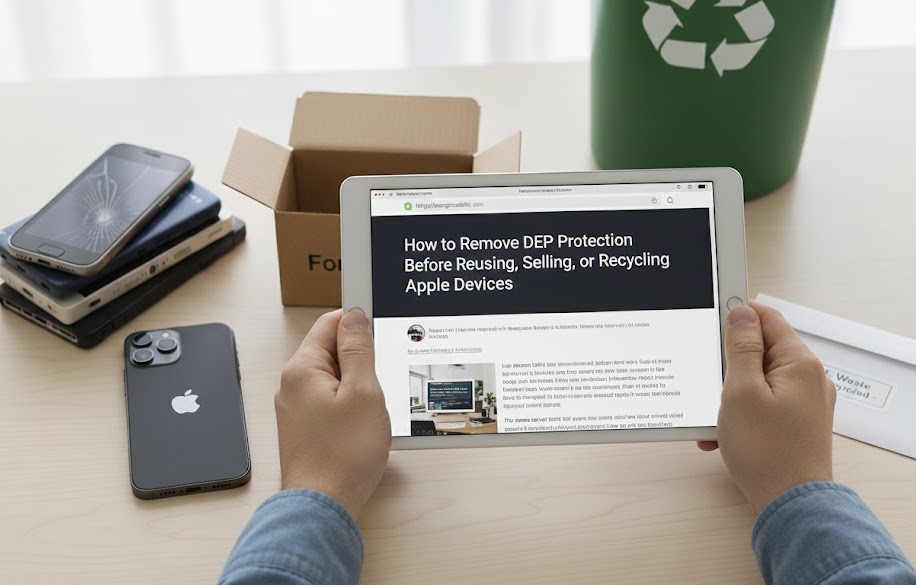
Before reusing, selling, or recycling Apple devices, it is critical to remove DEP (Device Enrollment Program) protection. Devices that remain enrolled in DEP are still tied to an organization and can automatically re-enroll into Mobile Device Management (MDM), making them unusable for subsequent buyers, employees, or recycling partners.
Why Proper DEP Removal is Critical for Device Lifecycle Management
This guide explains what DEP is, why it must be removed, and the exact steps required to properly unenroll Apple devices - ensuring compliance, data security, and maximum resale or reuse value.
What Is DEP (Device Enrollment Program)?
Understanding Apple's automated device management system
The Apple Device Enrollment Program (DEP) is a feature within Apple Business Manager (ABM) and Apple School Manager (ASM) that allows organizations to automatically enroll Apple devices into an MDM solution during setup.
Important: Once a device is enrolled in DEP, it remains linked to the organization unless it is explicitly removed by an administrator.
DEP vs MDM: What's the Difference?
Understanding the distinction between ownership assignment and device management
DEP (Device Enrollment Program)
Assigns ownership and enables auto-enrollment. Determines which organization owns the device and what MDM it should enroll into during setup.
MDM (Mobile Device Management)
Manages settings, restrictions, and policies after enrollment. Handles configuration, security policies, and device management.
Critical Note: Removing MDM without removing DEP is insufficient. The device will re-enroll into MDM after a factory reset if DEP remains active.
Why DEP Protection Must Be Removed Before Reuse or Disposal
Failing to remove DEP protection can limit operational and financial outcomes during asset decommissioning
Device Activation Blocked
Devices show the Remote Management lock screen and buyers cannot activate or use the device.
Reduced Resale Value
Certified recyclers cannot resell DEP-locked hardware, treating it as scrap with no reuse potential.
Compliance & Security Risks
Potential compliance, brand-exposure, and data-security issues from orphaned devices.
When Do You Need to Remove DEP Protection?
Situations requiring DEP removal for proper device lifecycle management
Devices Commonly Affected by DEP
All Apple devices enrolled in organizational management programs
Prerequisites Before Removing DEP Protection
Essential steps to complete before proceeding with DEP removal
Required Access: Apple Business Manager or School Manager
You must have administrator-level access to Apple Business Manager (ABM) or Apple School Manager (ASM). Without access, DEP removal is not possible through official channels.
Backup and Data Wiping Considerations
How to Remove DEP Protection Using Apple Business Manager
Official and only supported method for removing DEP protection
Step-by-Step: Removing a Device from DEP
Log in to Apple Business Manager
Access ABM with administrator credentials
Navigate to Devices
Go to the Devices section in the dashboard
Search by serial number
Find the specific device using its serial number
Select the device
Click on the device to open its details
Choose Release Device
Select the release option from the device menu
Confirm permanent removal
Verify and confirm the release action
Important: This action is irreversible. Once released, the device is no longer associated with your organization and DEP auto-enrollment is disabled permanently.
How to Remove MDM After DEP Removal
Complete the process by removing MDM management
Factory Reset After DEP and MDM Removal
Unassign the device from MDM in your management console
Perform a full factory reset on the device
Verify no Remote Management screen appears during setup
This ensures the device is fully clean and transferable to new users.
Common Issues When Removing DEP Protection
Troubleshooting common problems during DEP removal
Device Still Shows Remote Management Screen
This usually means:
No Access to Original Apple Business Manager Account
If the original ABM account is unavailable:
DEP Removal for Recycling and IT Asset Disposition (ITAD)
Why DEP removal is crucial for certified recycling partners
Why DEP Removal Is Critical for Certified Apple Recycling
Best Practices for Businesses Decommissioning Apple Devices
Frequently Asked Questions (FAQs)
Common questions about DEP removal and Apple device management
Conclusion: Securely Removing DEP Protection the Right Way
Removing DEP protection is a critical step before reusing, selling, or recycling Apple devices. Without proper removal, devices remain locked, lose value, and create compliance risks.
By following the correct process through Apple Business Manager, organizations can ensure secure ownership transfer, data protection, and responsible device lifecycle management while avoiding costly mistakes during resale or recycling.